At a glance
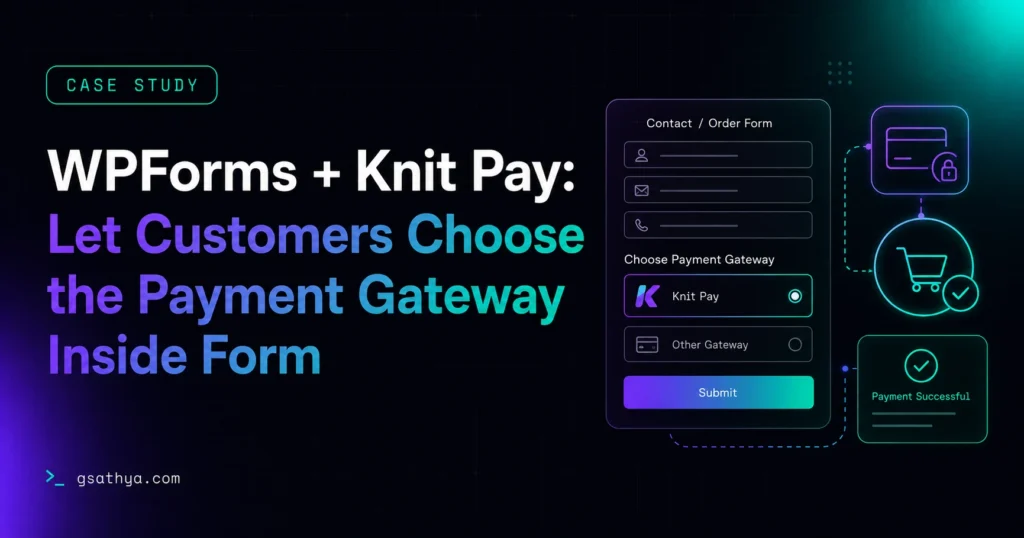
This site takes payments with WPForms connected to Knit Pay, a multi-gateway payment plugin. By default, Knit Pay shows a pop-up after form submission where the customer must choose a gateway before paying. I built a custom plugin that moves that choice into the WPForms form itself: the customer picks a gateway from a normal field, and the plugin routes the payment straight to it, skipping the Knit Pay multi-gateway pop-up for a faster, single-flow checkout.
WPForms payment gateway selector is a real-world case study of a custom plugin I built. This site takes payments with WPForms connected to Knit Pay, a multi-gateway payment plugin. By default, Knit Pay shows a pop-up after form submission where the customer must choose a gateway before paying. I built a custom plugin that move…
What the client needed
The site takes payments through WPForms, the WordPress form builder, connected to Knit Pay as the payment plugin. Knit Pay is a multi-gateway solution — from a single setup it can process payments through several gateways (UPI, cards, wallets and more).
By default, this combination has a friction point. When a customer fills in the WPForms form and hits submit, Knit Pay shows its own multi-gateway pop-up — a separate screen where the customer has to choose which gateway to pay with before they can actually pay. The owner wanted that choice to happen inside the form, as a normal field, so the extra pop-up could be skipped entirely and the customer would go straight to paying.
The challenge
Bringing the gateway choice into the form sounds simple, but a few things had to be right:
- No hard-coding. The site uses more than one Knit Pay gateway, and the owner needed to add or rename gateways later without a developer editing the form each time.
- Use a normal WPForms field. The selector had to be an ordinary radio or dropdown field, so it could be styled, reordered and made required like any other question.
- Match the exact gateway. Whatever the customer picked had to map to the correct Knit Pay configuration on the back end — by name or by ID — with no room for a mismatch.
- Skip the pop-up cleanly. Once the customer had chosen inside the form, the Knit Pay multi-gateway pop-up had to disappear without breaking the payment flow.
The solution
I built a small custom plugin that connects the WPForms field to the right Knit Pay gateway. The owner adds an ordinary radio or dropdown field to the WPForms form, gives it the CSS class knitpay-gateway, and names each choice after the matching Knit Pay configuration (one option per gateway) — or sets the choice value to the configuration’s ID. Nothing else on the form changes.
When the form is submitted, the plugin reads the customer’s selected option, finds the matching Knit Pay gateway configuration, and tells Knit Pay to use exactly that gateway. Because the gateway is now already decided, the Knit Pay multi-gateway pop-up is skipped and the customer moves straight into payment.
How it works, step by step
The plugin hooks into WPForms right before it processes a submission (the wpforms_process_before_form_data filter):
- It checks Knit Pay is enabled for that form. If the form does not use Knit Pay, the plugin does nothing, so other forms are never affected.
- It finds the selector field. It scans the form’s fields for the one carrying the
knitpay-gatewayCSS class — that field is the gateway chooser. - It reads the customer’s choice and resolves it to a Knit Pay configuration in three forgiving ways: by the choice’s stored value or visible label, by a numeric configuration ID, or by matching a saved Knit Pay gateway configuration by name (ignoring case and extra spaces).
- It applies the chosen gateway. The resolved configuration ID is set as the one Knit Pay will charge, so the multi-gateway pop-up never appears and payment goes directly through the selected gateway.
Because the matching is driven by the form’s own choices and the site’s existing Knit Pay configurations, the owner can add, rename or remove gateways in Knit Pay at any time and simply mirror them in the form field — no developer needed and nothing hard-coded.
Why it matters
Every extra screen between “I want to pay” and “payment complete” costs conversions. Moving the gateway choice into the WPForms form and skipping the Knit Pay pop-up removes a whole step from checkout, so the customer stays in one continuous flow. For the owner it is a one-class setup with no code to maintain per form.
Key results
- The gateway choice lives inside the WPForms form, not in a separate pop-up
- Knit Pay's multi-gateway pop-up is skipped, removing a step from checkout
- Set up with a single CSS class on a normal radio or dropdown field
- Supports any number of Knit Pay gateways, editable anytime with no code
Tech stack
Frequently asked questions
How do you let customers choose a payment gateway inside a WPForms form?
Add a normal radio or dropdown field to the WPForms form, give it the knitpay-gateway CSS class, and name each choice after a Knit Pay gateway configuration. The plugin reads the customer selection and routes the payment to that gateway.
How does it skip the Knit Pay multi-gateway pop-up?
Because the gateway is chosen inside the form, the plugin sets the matching Knit Pay configuration ID before payment is processed. Knit Pay then uses that gateway directly, so the multi-gateway selection pop-up never appears.
How does the plugin match the selection to the right Knit Pay gateway?
It resolves the choice in three ways: by the option value or label, by a numeric configuration ID, or by matching a saved Knit Pay gateway configuration name (ignoring case and extra spaces). The first match is applied.
Do I need to edit code for every form?
No. You add the field, apply the knitpay-gateway CSS class, and name the options after your gateways. There is no per-form code and nothing to maintain in the template.
Does it work with multiple gateways, and can I change them later?
Yes. It supports any number of Knit Pay gateways, and you can add, rename or remove them anytime in Knit Pay, then mirror the change in the form field. The form and the saved configurations stay the source of truth.
Want a Similar High-Converting Result for Your Business?
I am Sathyaseelan G., a senior freelance WordPress & Shopify developer with 10+ years of experience. Work directly with me with zero agency overhead, fast delivery, and proven performance.
Request a Free Quote →